.svg "Fluxy (3)")
.png)

.png)
.png)
.png)

About Fluxy Theme
Introducing Fluxy, a comprehensive HubSpot Website Theme designed to elevate your digital presence. Whether you're running a blog, magazine, news agency, travel and tour agency, business magazine, food blog, lifestyle brand, or technology news site, Fluxy provides the perfect solution. This theme is also ideal for any publishing or review website that demands a sleek, modern, and clean aesthetic.
Key Features of Fluxy
- Versatile Design: Fluxy is crafted to suit a wide range of industries and niches, making it a versatile choice for any content-driven website.
- Responsive Layout: Built with HTML, CSS, Jquery and JS, Fluxy ensures a seamless and responsive experience across all devices, providing your audience with a flawless browsing experience whether they're on a desktop, tablet, or smartphone.
- Customizable Components: Fluxy offers a variety of customizable components and modules, allowing you to tailor the site to your specific needs and preferences.
- Comprehensive Support: Fluxy comes with detailed documentation and access to dedicated support to assist you with any questions or issues.
%202.png)
1. Creating a Child Theme
By creating a child theme of the Marketplace theme, You can now create one-off changes, custom CSS, JavaScript, and/or modules, while still being able to receive updates through the Marketplace.
You can create a child theme for your marketplace purchased theme or a default HubSpot theme in the Design Manager. When creating a child theme from these assets inside the Design Manager, the following files will be added to your child theme:
- theme.json will include the proper extended statement for linking to the parent theme.
- child.css and child.js - this is an empty CSS and JS file. The code added to these files will only affect the child theme. You can customize the name of these files in the advanced options section of the child theme creation wizard.
- In your HubSpot account, navigate to Content > Design Tools.
- In the left sidebar, navigate to @marketplace > Fluxy, right-click on the theme, and click Create child theme.
- Enter a name for your child theme, choose the location of the theme, and click Create Child Theme.
- Once your child theme is created, a success message will appear telling your child theme is ready to go. You can now click Close.
2. Theme Settings
To customize your theme's styling, including font, colors, and spacing, navigate to your theme settings. Any styles edited here will apply to all pages.
For any additional customization options needed in theme settings. Contact us at support@growmeda.com
Follow these steps:
- Click the settings icon in the main navigation bar of your HubSpot account.
- In the left sidebar menu, navigate to Content > Themes.
- Select your Fluxy theme.
Global Colors
Here, you can customize and establish the colors that will represent your brand.

Global Fonts
Here, you can set up the typography for your site. You can choose the typography settings for Primary Font (Body Texts) & Secondary Font (Headings). You can choose the Primary font from any Google Fonts and Its Color in the Primary font settings. You can choose the Secondary font from any Google Fonts and Its Color in the Secondary font settings.

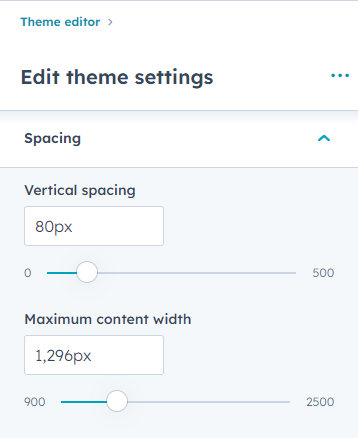
Spacing
You can customize the container width and vertical and horizontal Spacing globally here.
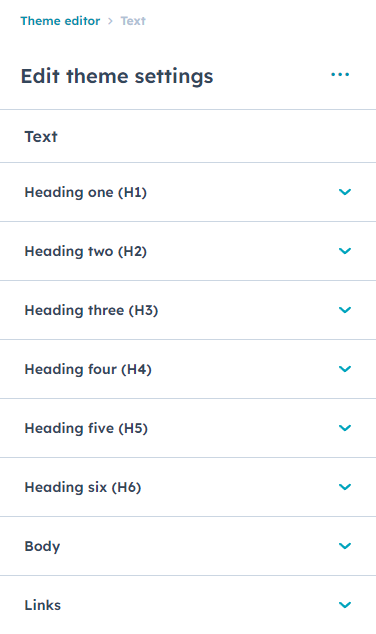
Text
In this theme setting, You can customize the Typography settings of Body texts, Headings (H1- H6) and Link color & Link Hover color throughout the theme. In the Body Text Setting, You are provided with selecting the Google font of your need and font size, color, line height, font weight, and a boolean option to change the Font size on mobile if needed. SImilarly, you have the same options in Headings H1-H6.
Buttons
In this theme setting, You can define the buttons' styles.

Forms
You can customize the form styling inside these settings. You can customize the Form background color, Field background color, Label color etc here.

Tables
Here you can define the styles and look of the tables used in the website.

Website Header
In the Website Header Settings, You can choose the Background color of the Megamenu Header, Text Color, Menu link color and It’s hover state color, Menu link dropdown icon color, Child menu Background Color, Child menu link color, Child Menu Item Link hover state color and it’s Background color on hover state.

Website Footer
Here you can define the Global style of the footer of the website.

3. Page Templates
When you are creating a new page in HubSpot, you will have the option to choose from the available templates.
To access the available templates when creating a page in HubSpot, follow these steps:
- Log in to your HubSpot account and navigate to the Content menu.
- Find and click on the Website Pages or Landing Pages option.
- Click on the Create button to start creating a new page.
- In the page creation menu, you will find a section where you can select a template.
4. Blog Templates
Blog Listing Template
- Click the settings icon in the main navigation bar.
- In the left sidebar menu, navigate to Content > Blog.
- In the Current View section, click the first dropdown menu and select the blog you want to edit.

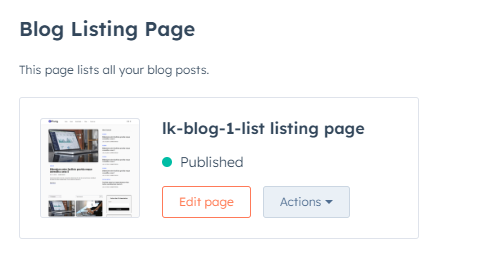
In the Blog Listing section, click the Actions dropdown menu to manage your blog post template:
- Select Change template to choose a different template. On the next screen screen scroll down a click Advanced options then select Use different template On the theme selection screen, choose Fluxy Blog Listing Page, then select your Blog Listing then click Use Template.
Blog Post Template
- Click the settings icon in the main navigation bar.
- In the left sidebar menu, navigate to Content > Blog.
- In the Current View section, click the first dropdown menu and select a blog and select the blog you want to edit.
In the Blog Post section, click the Actions dropdown menu to manage your blog post template:
- Select Change template to choose a different template. On the theme selection screen, select Fluxy, then select your Blog Post template then click Done. In the bottom left of your template settings, click Save.

5. System Templates
System Pages
- Click the settings icon in the main navigation bar.
- In the left sidebar menu, navigate to Content > Pages.
- Select System Pages from the tabs
- There you can select the templates for these system pages:
- 404 Error page
- 500 Error page
- Password prompt page
- Search result page
- Also, you can set the Search result page URL.
Subscription Templates
- Click the settings icon in the main navigation bar.
- In the left sidebar menu, navigate to Marketing > Email.
- Select Subscription from the tabs
- There you can select the templates for these subscription pages:
- Subscription preferences page
- Subscription Update Confirmation page
- Unsubscribe page
6. Modules
Apart from the theme settings, we provide advanced customization and content updation options in custom & global modules.
For any additional custom modules or customization needed in modules in the Zepia theme. Contact us at support@growmeda.com
Module Content Updation
Inside the edit page of a particular page, You can just click on a module and click on the content tab to update the Text, images, and other elements of the module.

Module Style Updation
Inside the edit page of a particular page, You can just click on a module and click on the Styles tab to update the styles of each element included in the module such as fonts, color, Background, etc.

Support
Call Us: +91 73064 41761
Mail Us: support@growmeda.com
Our Website: https://growmeda.com/